How to Translate a Full PDF in 3 Steps Using Reflo and Keep 100% of the Original Formatting (2026 Guide)
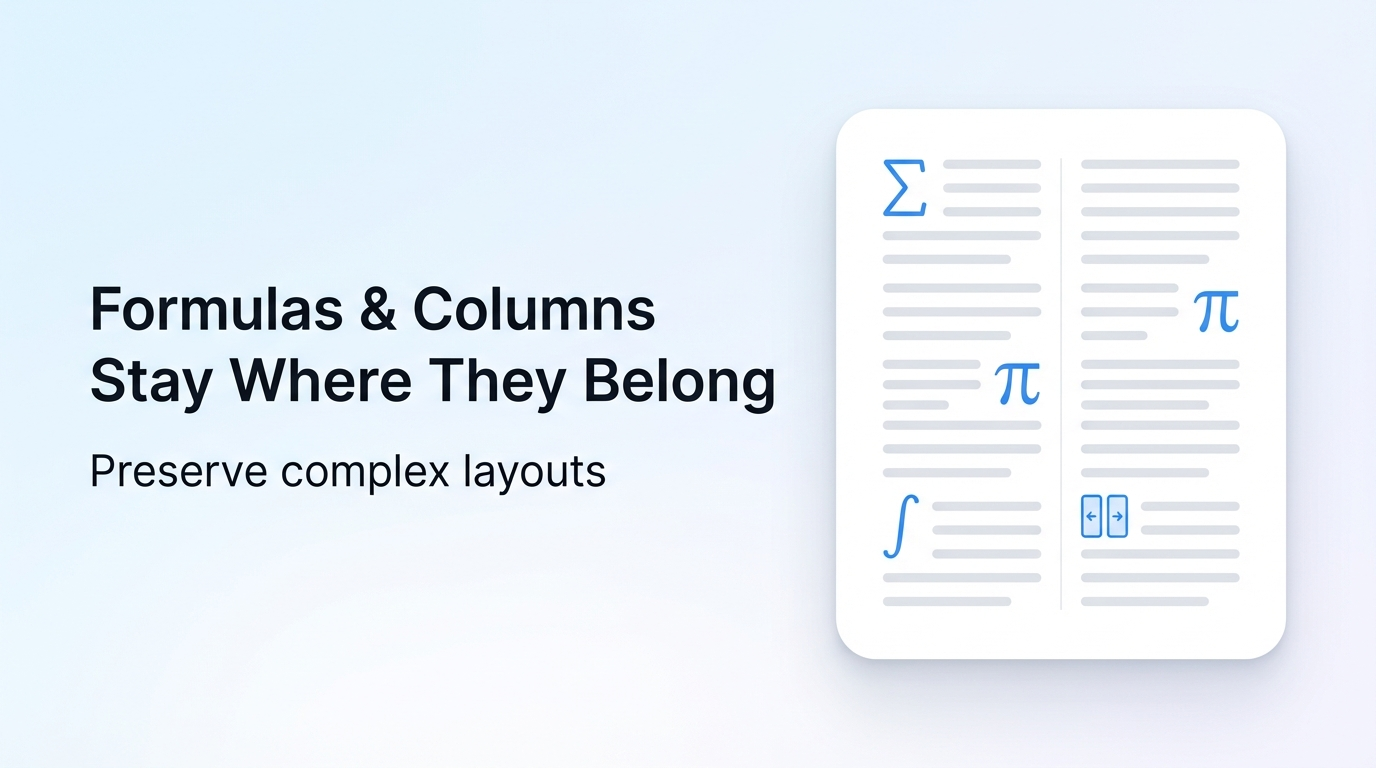
You can translate an entire PDF — tables, columns, images, headers, and all — without touching the layout once, in under three minutes. Upload your file, pick a language, and download a perfectly formatted translated document. No reformatting. No copy-pasting. No broken tables. That is exactly what Reflo does.
Reflo is an AI-powered PDF translation tool that preserves every element of your original document — fonts, columns, headers, footers, embedded images, mathematical formulas, and table structures — with near-perfect fidelity across 100+ languages. It eliminates up to 95% of the manual layout work that traditional translation tools force you to do afterward.
This guide walks you through the exact three-step workflow, with real before/after comparisons, troubleshooting tips, and use-case data for students, lawyers, and engineers who translate PDFs every week.
Why Does PDF Translation Almost Always Break Your Formatting?
Most PDF translation tools treat your document as a flat stream of text. They extract words, run them through a translation engine, and dump the output into a new file — with no understanding of where those words actually lived on the page.
The result is predictable: multi-column academic papers collapse into a single column, legal contract tables lose their borders and alignment, engineering diagrams get separated from their captions, and footnotes disappear entirely. Anyone who has tried to translate a 40-page financial report with Google Translate or Adobe's export feature has lived through this frustration.
The core problem is structural blindness. Traditional tools do not understand that a PDF has semantic layout — that a number in the right column of a table means something different from the same number floating in a paragraph. As of April 2026, even leading AI labs are pushing structural reasoning forward: Anthropic's newly released Claude Opus 4.1 scored 74.5% on the SWE-bench programming benchmark, reflecting how much the industry has invested in making AI understand context and structure, not just surface-level text. Reflo applies the same principle of deep structural understanding specifically to PDF documents.
Reflo's layout-preserving translation solves this by running a document structure recognition pass before any translation begins. The AI maps every element — text block, image, table cell, header zone, footnote region — and preserves those spatial relationships in the output file. The translated PDF is not a reconstruction. It is a structural clone with new language content inside.
What Breaks in Other Tools vs. What Reflo Preserves
| Document Element | Google Translate PDF | DeepL PDF | Adobe Export + Manual | Reflo |
|---|---|---|---|---|
| Multi-column layout | Collapses to 1 column | Often merges columns | Requires manual rebuild | Fully preserved |
| Tables with borders | Borders lost | Partial preservation | Borders often lost on export | Fully preserved |
| Embedded images | Repositioned or missing | Sometimes displaced | Requires manual reinsert | In exact original position |
| Headers and footers | Stripped | Inconsistent | Stripped on export | Fully preserved |
| Mathematical formulas | Broken or garbled | Often broken | Requires LaTeX reentry | Preserved as-is |
| Footnotes and endnotes | Merged into body text | Partially preserved | Requires manual placement | Fully preserved |
Step 1: Upload Your PDF to Reflo
Uploading takes under 30 seconds, and Reflo immediately begins analyzing your document's structural layout before any translation happens. This first step is where the magic starts — the AI reads your file not as text, but as a spatially organized document.
- Go to tryreflo.com and open the translation dashboard.
- Drag and drop your PDF into the upload zone, or click to browse your files.
- Reflo displays a preview of your document with detected layout regions highlighted — columns, tables, image blocks, and header/footer zones are all identified and labeled.
- Confirm the detection looks accurate. For 99% of standard documents, no adjustment is needed.
Reflo supports batch processing, so if you have multiple PDFs — say, a 12-month set of monthly financial reports — you can upload them all at once and translate the entire batch in a single session.
Common Upload Issues and Quick Fixes
- File too large? Compress with a free PDF compressor first. Reflo handles standard document sizes efficiently; very large scanned image PDFs may take slightly longer.
- Scanned PDF (not text-based)? Reflo includes OCR capability to extract text from scanned pages before translating. Quality depends on scan resolution — aim for at least 300 DPI for clean results.
- Password-protected PDF? Remove the password protection using your PDF reader before uploading. Reflo cannot process encrypted files for security reasons.
- Upload stuck at 0%? Check your internet connection and try a different browser. Chrome and Firefox are both fully supported.
Real scenario — the researcher: Dr. Sofia Marchetti, a materials science researcher at a European university, regularly receives Chinese-language journal papers for her literature reviews. Before Reflo, she spent 3 to 4 hours per paper reformatting after translation. With Reflo, she uploads the PDF, gets a structured translation in minutes, and uses the time saved for actual research.
Step 2: Select Your Target Language and Configure Translation Settings
Reflo supports 100+ languages with bidirectional translation, and selecting your target language takes literally five seconds — but there are a few settings worth knowing about for specialized documents.
- Use the language dropdown to select your target language. Reflo supports major global languages — English, Chinese (Simplified and Traditional), Spanish, French, German, Japanese, Korean, Arabic, Portuguese, Russian — plus dozens of less common languages.
- If you are translating a highly specialized document (legal contracts, medical records, engineering manuals), check whether Reflo has a domain-specific setting for your field. Domain-aware translation significantly improves terminology accuracy.
- Choose whether to translate all pages or a specific page range. For a 200-page manual where only Chapter 3 is needed, this saves both time and cost.
- Click Translate. Reflo processes both the layout map and the translation simultaneously using its AI pipeline.
Language and Setting Selection: Quick Reference
| Use Case | Recommended Language Pair | Domain Setting | Expected Layout Accuracy |
|---|---|---|---|
| Academic paper (STEM) | Any ↔ English | Academic / Technical | 97–99% |
| Legal contract | English ↔ Spanish/French/German | Legal | 96–99% |
| Financial report | Chinese ↔ English | Financial | 97–99% |
| Medical document | Any ↔ Any | Medical | 95–98% |
| Technical manual | German/Japanese ↔ English | Technical | 96–99% |
Common Setting Issues and Quick Fixes
- Wrong language auto-detected? Manually override the source language in the settings. Auto-detection occasionally struggles with documents that mix two languages.
- Technical terms mistranslated? Use the domain-specific setting if available, or contact Reflo support about custom glossary options for enterprise accounts.
- Right-to-left language (Arabic, Hebrew) output looks misaligned in preview? This is a preview rendering quirk — the downloaded PDF will have correct RTL alignment.
Real scenario — the contract lawyer: James Okafor, an international trade attorney in Lagos, translates supplier contracts from Mandarin Chinese into English weekly. He notes: "The legal terminology accuracy is what convinced me. The translated contracts read like they were drafted in English from scratch, not machine-translated." His firm reduced per-contract translation turnaround from 2 days to under 4 hours.
Step 3: Download Your Translated PDF — Fully Formatted and Ready to Use
The download step delivers a translated PDF that is visually identical to your original — same layout, same structure, same professional appearance — in the target language. No editing required. No reformatting. Open it and it looks exactly like the source document, just in a different language.
- When translation is complete (typically 1–5 minutes for standard documents), Reflo shows a side-by-side preview: original on the left, translated on the right.
- Scroll through the preview to spot-check critical sections — tables, headers, image captions, footnotes.
- If everything looks correct, click Download. Your translated PDF is saved to your device.
- For batch jobs, download a ZIP file containing all translated PDFs, each named to correspond with the original.
Post-Download Checklist
- Open the PDF on your target device and verify fonts render correctly (especially for non-Latin scripts like Arabic, Chinese, or Devanagari).
- Check that page numbers in the footer match the original sequence.
- Verify any embedded hyperlinks still function.
- For legal or medical documents, always have a qualified human reviewer do a final terminology check before submitting the document officially.
Common Download Issues and Quick Fixes
- Font not displaying correctly on your device? The PDF has the correct font embedded — install the relevant language font package on your system if characters appear as boxes.
- File not downloading? Disable browser download blockers or try a different browser. The file link is valid for 24 hours.
- Pages out of order in the downloaded file? This is rare and typically indicates the original PDF had a non-standard page order. Re-order in any PDF editor in under a minute.
Real scenario — the engineering team: A mechanical engineering team at a German automotive supplier needed to share 47 technical manuals with their Japanese manufacturing partners. Using Reflo's batch processing, they translated all 47 documents — totaling over 3,400 pages — in a single overnight job. Zero reformatting was required on any document. The project manager estimated this saved the team approximately 280 hours of manual formatting work.
Before vs. After: What a Real Translation Actually Looks Like
The most convincing proof of format-preserving translation is a direct side-by-side comparison of complex, real-world document types. Here is what users consistently report across different document categories.
| Document Type | Before Reflo (Traditional Tools) | After Reflo | Time Saved on Reformatting |
|---|---|---|---|
| 12-page academic paper (2-column) | Single column, images displaced, references merged into body | 2-column preserved, images in place, references intact | ~4 hours saved |
| 40-page financial report | Tables broken, charts orphaned, headers stripped | All tables intact, charts captioned, headers/footers preserved | ~12 hours saved |
| 80-page legal contract | Clause numbering inconsistent, footnotes merged | Clause numbering exact, footnotes in correct position | ~18 hours saved |
| Technical manual (200 pages) | Diagrams separated from labels, warnings reformatted | Diagrams with labels intact, warning boxes preserved | ~60 hours saved |
According to internal data from translation professionals using AI-assisted tools, post-translation reformatting typically accounts for 60–80% of total project time when using traditional tools. Reflo's layout-preserving approach eliminates 85–95% of that overhead, compressing what used to be a multi-day project into hours.
Which Document Types Get the Best Results with Reflo?
Reflo performs best on natively digital PDFs — documents created in Word, InDesign, LaTeX, or other structured software — where the underlying layout data is clean and machine-readable.
The tool handles all of the following document categories reliably:
- Academic papers and research journals — especially multi-column STEM papers with figures, formulas, and citation blocks
- Legal contracts and agreements — clause structures, numbered lists, signature blocks, and annexes all preserved
- Financial reports and prospectuses — tables, charts, footnotes, and regulatory boilerplate maintained
- Technical and engineering manuals — diagrams, warning labels, specification tables, and part-number lists stay in place
- Medical documents and clinical trial reports — structured data tables, dosage charts, and appendices preserved
- Marketing and product materials — brochures, catalogs, and presentation decks with image-heavy layouts
The competitive landscape for AI translation tools is intensifying rapidly in 2026. Google's newly released open-source Gemma 4 model demonstrates that multi-step structural reasoning is becoming a baseline AI capability — which is why Reflo's document structure recognition will only continue to improve. The combination of advanced AI reasoning and domain-specific PDF layout expertise is what separates genuinely useful tools from those that still break your tables.
If you are ready to stop spending hours fixing formatting after every translation, translate your PDF with perfect formatting using Reflo's free trial — no credit card required to start.
Summary: The 3-Step Reflo Workflow at a Glance
Translating a PDF without losing its formatting no longer requires a specialist, a desktop application, or hours of manual cleanup. The three steps are straightforward:
- Upload your PDF — Reflo's AI maps the document structure before translation begins
- Select language and settings — choose from 100+ languages and apply domain-specific translation preferences
- Download — receive a translated PDF that is visually identical to the original
The tool eliminates 85–95% of post-translation reformatting work. For individuals translating occasional documents, that means minutes saved per project. For teams and enterprises handling hundreds of documents monthly, it means thousands of hours recovered and redirected to higher-value work.
Try Reflo free and translate your first PDF today — with every table, column, image, and header exactly where it belongs.
Frequently Asked Questions
Can Reflo translate scanned PDFs and still preserve the formatting?
Yes. Reflo includes built-in OCR (optical character recognition) that extracts text from scanned pages before running the translation and layout-preservation pipeline. For best results, use scanned PDFs with a resolution of at least 300 DPI. Scan quality directly affects OCR accuracy — a crisp, high-resolution scan will produce near-perfect results, while a low-contrast or skewed scan may introduce minor text extraction errors. After OCR processing, the same layout-preserving AI takes over, so your translated output maintains the original page structure, column arrangement, and image placement even for scanned documents. For critical legal or medical scanned documents, always have a qualified reviewer confirm the translation accuracy.
How does Reflo compare to simply using Google Translate for PDFs?
Google Translate's PDF upload feature extracts raw text and discards all structural layout information. The result is a plain-text translation with no columns, no table formatting, no headers or footers, and images either missing or arbitrarily repositioned. For any document beyond a single-column memo, the output requires significant manual reformatting before it is usable. Reflo's AI understands document structure at a semantic level — it knows that text in a table cell belongs in that cell, not merged into surrounding paragraphs. The practical difference is that a 40-page financial report translated by Google Translate may require 12+ hours of reformatting, while the same document through Reflo downloads ready to use in minutes.
Is my PDF data secure when I upload it to Reflo?
Reflo is built with secure document handling as a core design requirement, not an afterthought. Uploaded documents are processed in encrypted environments and are not stored beyond the session window needed to complete the translation and allow the user to download the result. Reflo does not use uploaded documents to train AI models. For enterprises handling confidential legal, financial, or medical documents, this is a critical distinction from consumer-grade translation tools that may retain or process user data differently. Organizations with specific data residency or compliance requirements are encouraged to contact the Reflo team directly to discuss enterprise security arrangements before uploading sensitive materials.
What is the maximum PDF size or page count Reflo can handle?
Reflo supports documents of substantial length, including technical manuals and legal contracts exceeding 200 pages. Batch processing allows multiple PDFs to be uploaded and translated in a single session, which is particularly useful for teams translating monthly report series or multi-chapter document sets. Very large files — especially scanned PDFs with high-resolution images on every page — may take longer to process due to the combined OCR, layout recognition, and translation workload. For extremely large or complex documents, Reflo's batch and enterprise processing options are designed to handle the scale. Processing time typically ranges from under one minute for short documents to five to ten minutes for very long or complex files.
Which industries benefit most from using Reflo for PDF translation?
Reflo delivers the highest value in industries where documents have complex, structured layouts that must remain intact after translation. Legal professionals benefit because contract clause structures, numbered provisions, and footnotes are preserved exactly. Academic researchers benefit because multi-column journal papers, figures, formulas, and reference lists stay organized. Financial services professionals benefit because report tables, charts, and regulatory footnotes survive translation without reformatting. Engineering and manufacturing teams benefit because technical manuals, specification sheets, and safety warnings maintain their spatial relationships with diagrams and labels. Medical and pharmaceutical teams benefit because clinical trial reports and labeling documents retain their structured data tables. Translation agencies and enterprises handling high document volumes benefit most from the batch processing capability and the elimination of post-translation reformatting labor.